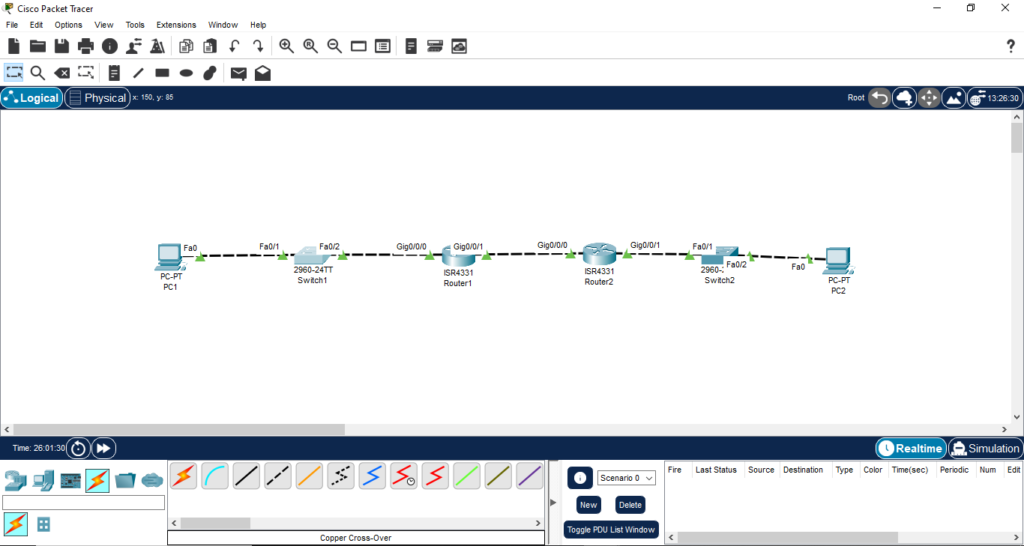
I design a lab , for initial device configuration, how to connect to cisco router or switch, initial device configuration; switch, router initial configuration, and build a basic cisco netwrk, make lab complete to practice all in hands on lab
All are connected using Copper Straight-Through cable.
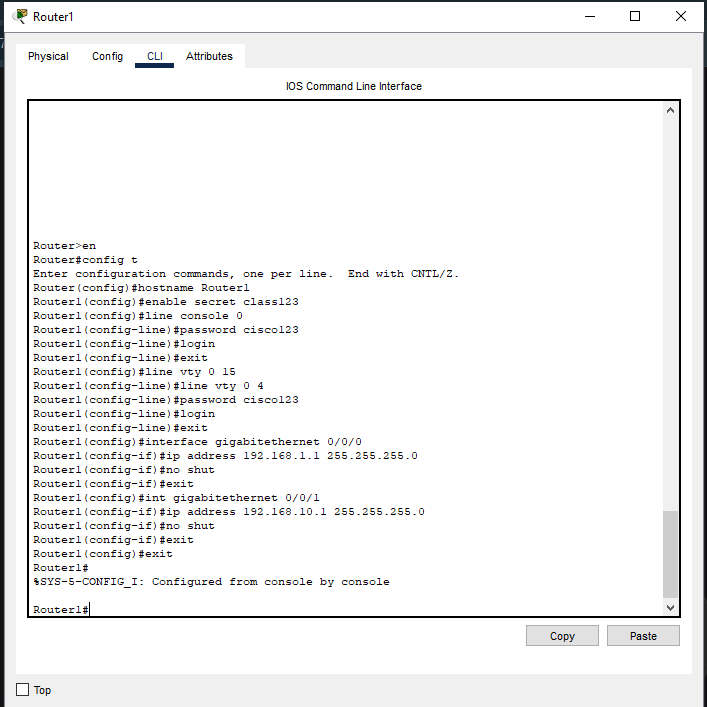
Few ports were down so do basic configuration using CLI mode of both routers using these basic commands and check router interface, if it is up or not;
PHASE : 1 – Configure Routers
Router1
>enable
>config t
>int gigabitethernet0/0/0
>no shut
>Interface GigabitEthernet0/0/1
>no shut
>exit
exit***
Router 2
>enable
>config t
>int gigabitethernet0/0/1
>no shut
>Interface GigabitEthernet0/0/0
>no shut
***>exit
exit***
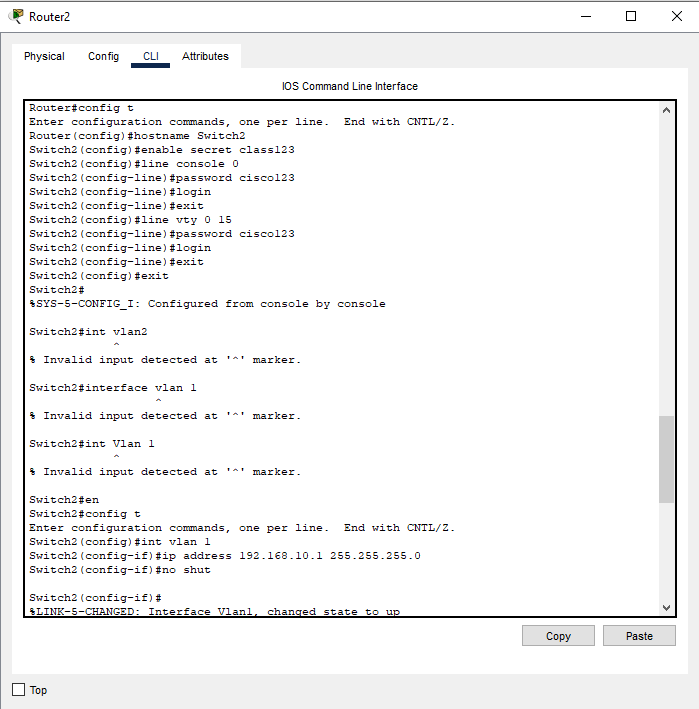
PHASE : 2 – Configure Switches
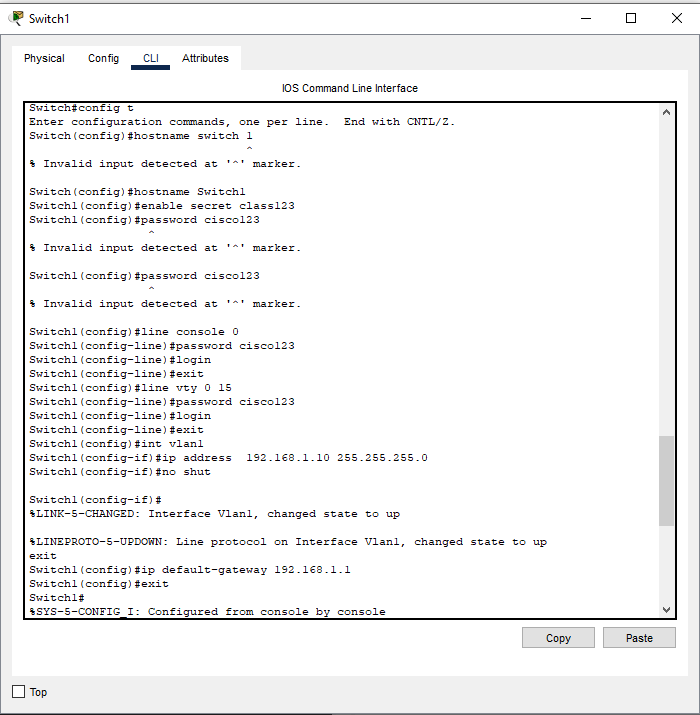
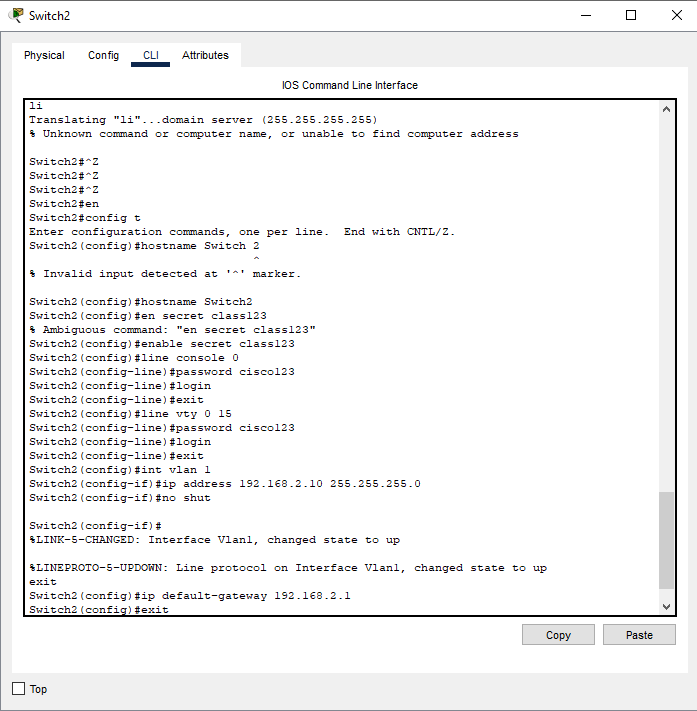
Now lets do Initial device configuration:
Switch 1 & Switch 2
>enable
>config t hostname Switch1 (to set hostname)
>enable secret class123 (to set privileged exec password)
Now all devices are configured sucessfully and what i see;
Switch1 prompt:Switch1#
Switch2 prompt:Switch2#
Router1 prompt:Router1#
Router2 prompt:Router2#
Now to Verify Switch Configuration:
***Switch1# show interfaces vlan 1
Switch1# show ip interface brief***
To configure Static Routing on routers:
Router1#configure terminal
Router1(config)# ip route 192.168.2.0 255.255.255.0 192.168.10.2
Router1(config)# exit
Router2# configure terminal
Router2(config)# ip route 192.168.1.0 255.255.255.0 192.168.10.1
Router2(config)# exit
For Basic Connectivity Test i do;
From PC1 command prompt
PC1> ping 192.168.1.10 (Switch1)
PC1> ping 192.168.1.1 (Router1)
PC1> ping 192.168.10.2 (Router2)
PC1> ping 192.168.2.100 (PC2)
From Router1
Router1# ping 192.168.2.100
Router1# show ip route
Router1# show interfaces description
From Switch1
Switch1# show mac address-table
Switch1# show vlan brief
Troubleshooting:
I do shutdown interface and then test it for troubleshooting practice;
Router1# config t
Router1(config)# interface gigabitethernet 0/0/1
Router1(config-if)# shutdown
I do test connectivity between PC1 & PC2, so then i bring interface up by using no shut command.
This comprehensive lab gives me hands-on practice with all fundamental Cisco networking concepts
Lab Completion Checklist
Successfully console into all devices
Configure basic settings on both switches
Configure basic settings on both routers
Establish physical connections correctly
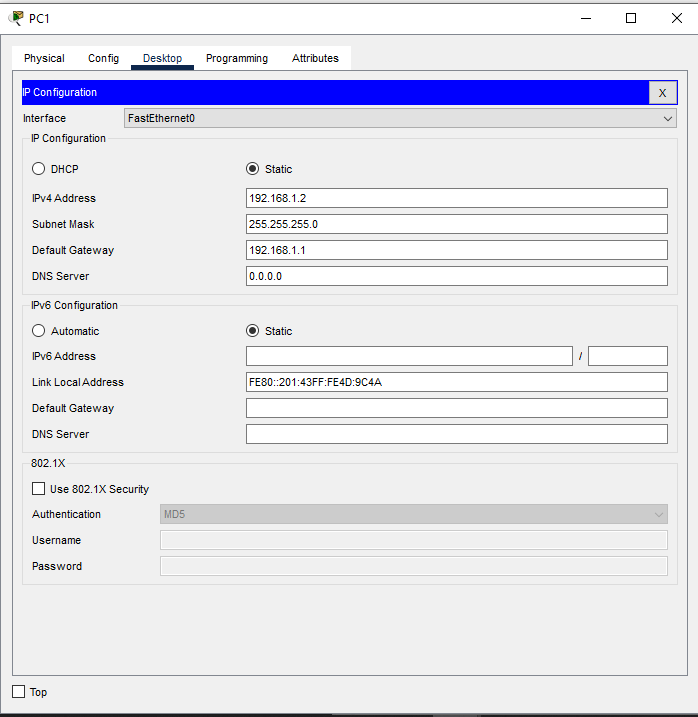
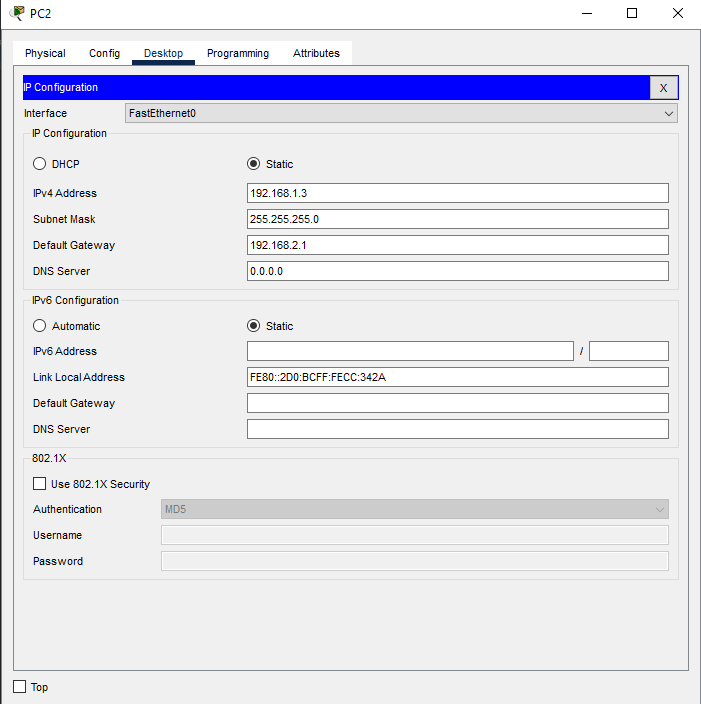
Configure PC IP addresses
Set up static routing
Verify end-to-end connectivity
Practice troubleshooting scenarios
Conclusion:
So in today’s blog I show how i do Configure basic devices and networking in lab step by step in easy and simple way. Theconfiguration of router is very important because it will start the network. So if you want to try this lab you can download the cisco packet tracer file from my github or you can reach out to me via my social media handles. This practice helped me to fulfill the gap between theory and practical knowledge. I’m sharing my journey to becoming a cyber security professional step by step through blog posts, hands-on labs, and GitHub projects. Here is my github project link you can check it or you can also follow me on my other social media profiles. https://github.com/munazajamil/Windows-7-Penetration-Testing-Report. So if you want to start learning ethical hacking start with free resources available on YouTube and read books. If you found this guide useful keep an eye out for additional cyber security tutorials for beginners! Stay tuned with my blog for additional real life cyber security walkthroughs. Just check out the cyber security roadmap for beginners.